
How to play Random Duck Race
No account, no download, no learning curve. Type the names, press start, and let the river decide — here is everything you can do along the way.
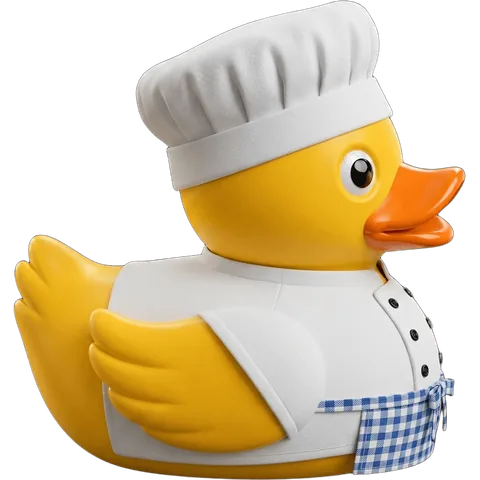
Random Duck Race is a free online duck race: every name you enter becomes a duck, all the ducks are dropped into the same river, and the current — with a little help from the slipstream — decides who crosses the finish line first. It works in any modern browser on a phone, tablet, laptop or classroom projector.
-
Add your names
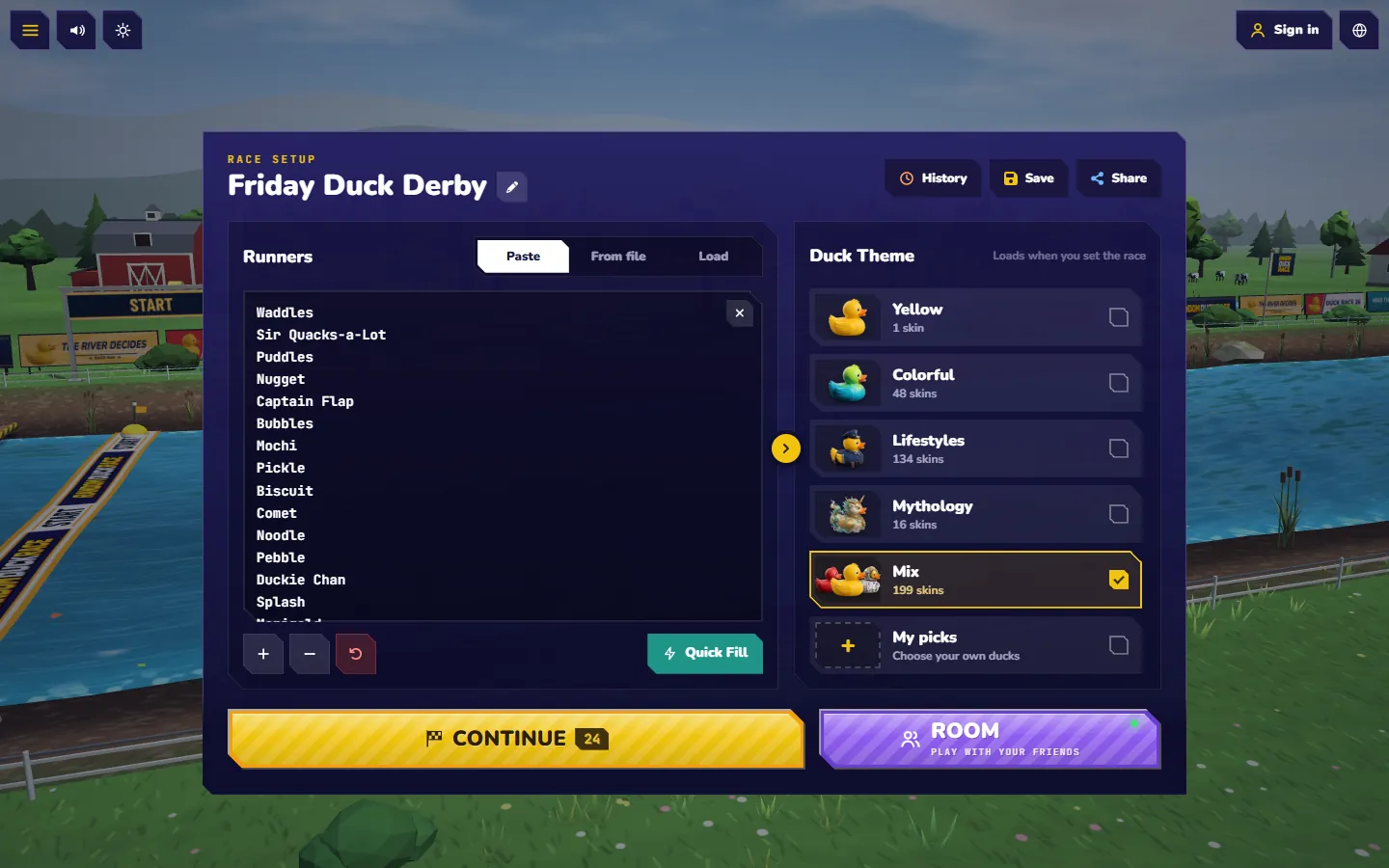
Every line in the list is one duck. Fill it however suits you:
- Type or paste — one name per line, or separated by commas. Up to 1,000 names in a single race.
- Import a CSV or Excel file (drag it onto the box, or browse). Choose which column holds the names, and decide what to do with duplicates.
- Quick fill numbered runners — “Duck 1, Duck 2…” or your own prefix — when you just need a field of a certain size.
- Load a list you saved earlier: class lists and team rosters are one tap away next time.
Use + and − to add or remove a runner, and the reset button to go back to the default field.
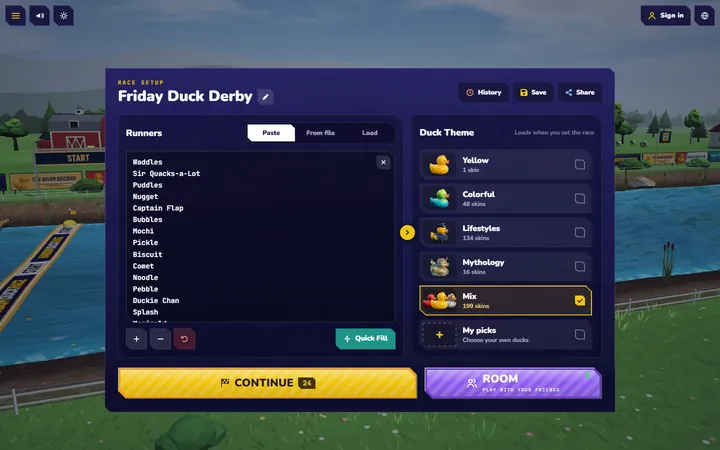
The race setup Paste your names, pick a duck theme and press Continue — a race is ready in seconds. -
Pick the ducks
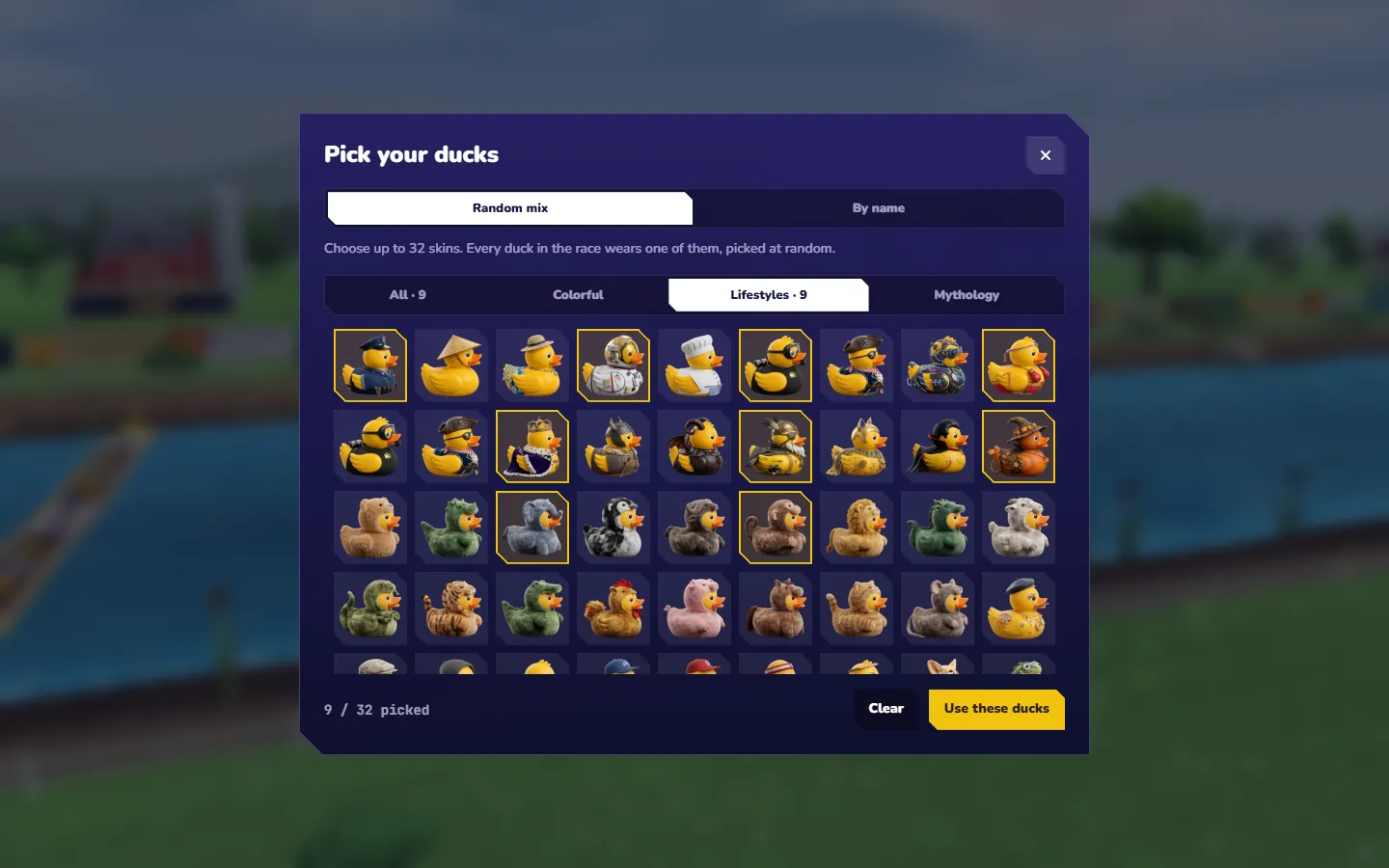
Choose a duck theme for the whole field — the classic yellow duck, colourful ducks, characters, lifestyle ducks or mythical creatures — from 100+ 3D duck skins. Or open My picks to choose exactly which ducks race, and even give a particular name its own duck.
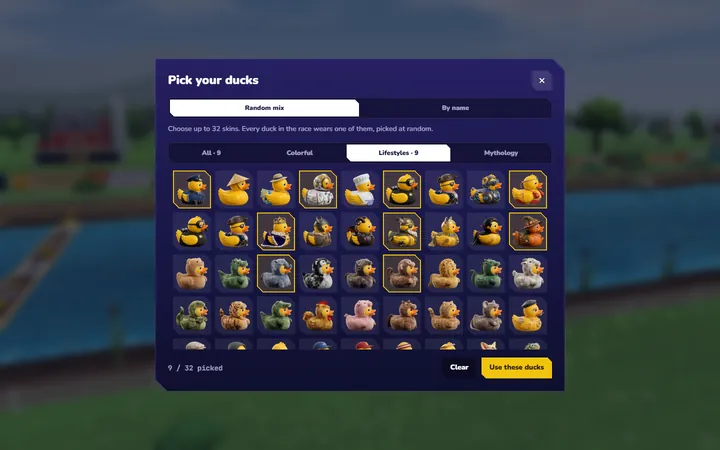
Pick your ducks My picks: choose up to 32 duck skins for the field, or a duck for each name. -
Set the race
Open Settings from the menu to fine-tune the show. None of these change who is more likely to win — every duck always gets the same chance.
- Course length — 100 m for a race in about ten seconds, 300 m for one under a minute, up to 900 m for a longer, twistier battle.
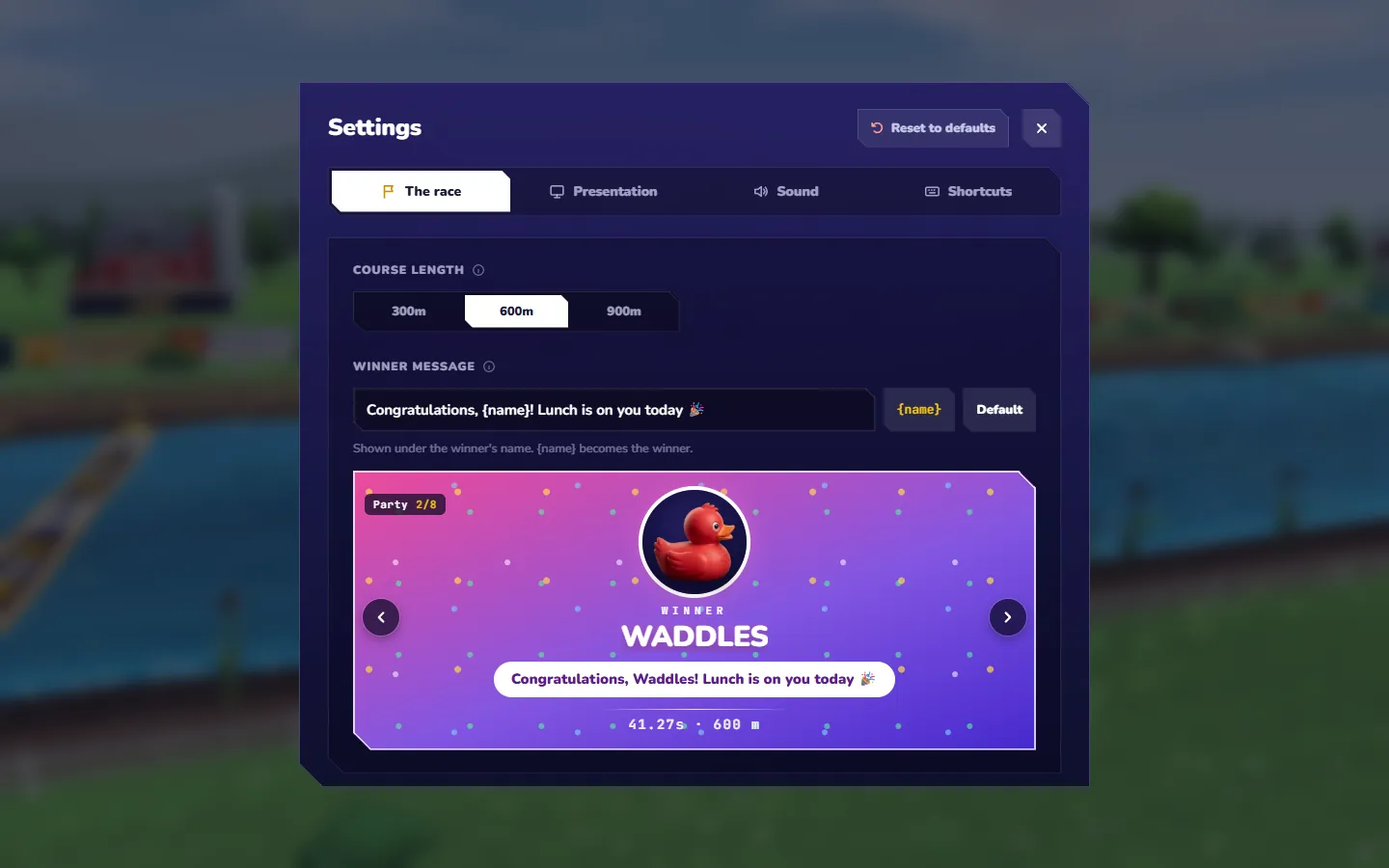
- Winner message — your own words under the winner’s name: a prize, a task, a joke. Write {name} where the winner’s name should go.
- Name tags — label the top 5, 10 or 20 over the water, or none at all; the live standings always list everyone.
- Scenery — the countryside, a stadium with a painted wall and a crowd in the stands, or Halloween: bare trees, glowing jack-o'-lanterns, a graveyard, ghosts and bats under a big moon (the button next to Language on the top bar opens a picker with a picture of each). Everyone starts in the stadium (in Halloween from 19 to 31 October); a scenery you pick is remembered.
- Camera — Wide follows the leaders and pulls back as the field spreads out; Close-up is the same shot zoomed in, the ducks bigger on the screen.
- Sound — four music tracks (unless you pick one, each scenery plays its own: Duck Parade in the countryside, Pixel Paddle in the stadium, Haunted Hop at Halloween), six “new leader” sounds, and a volume for each.
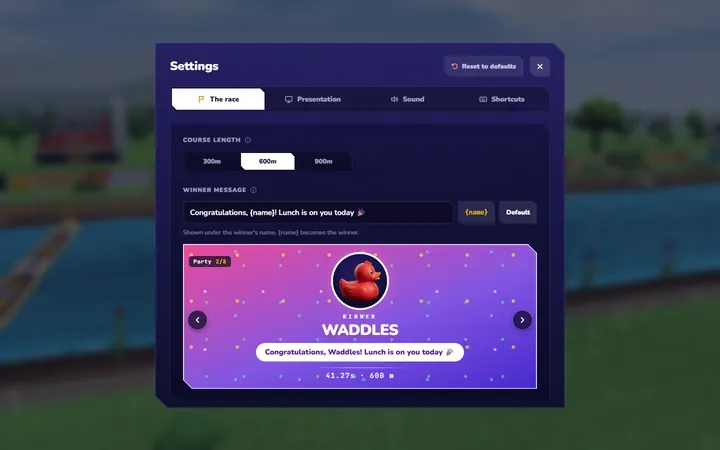
Your winner message Settings › The race: the course length and your own message for the winner, on one of eight cards. -
Start the race
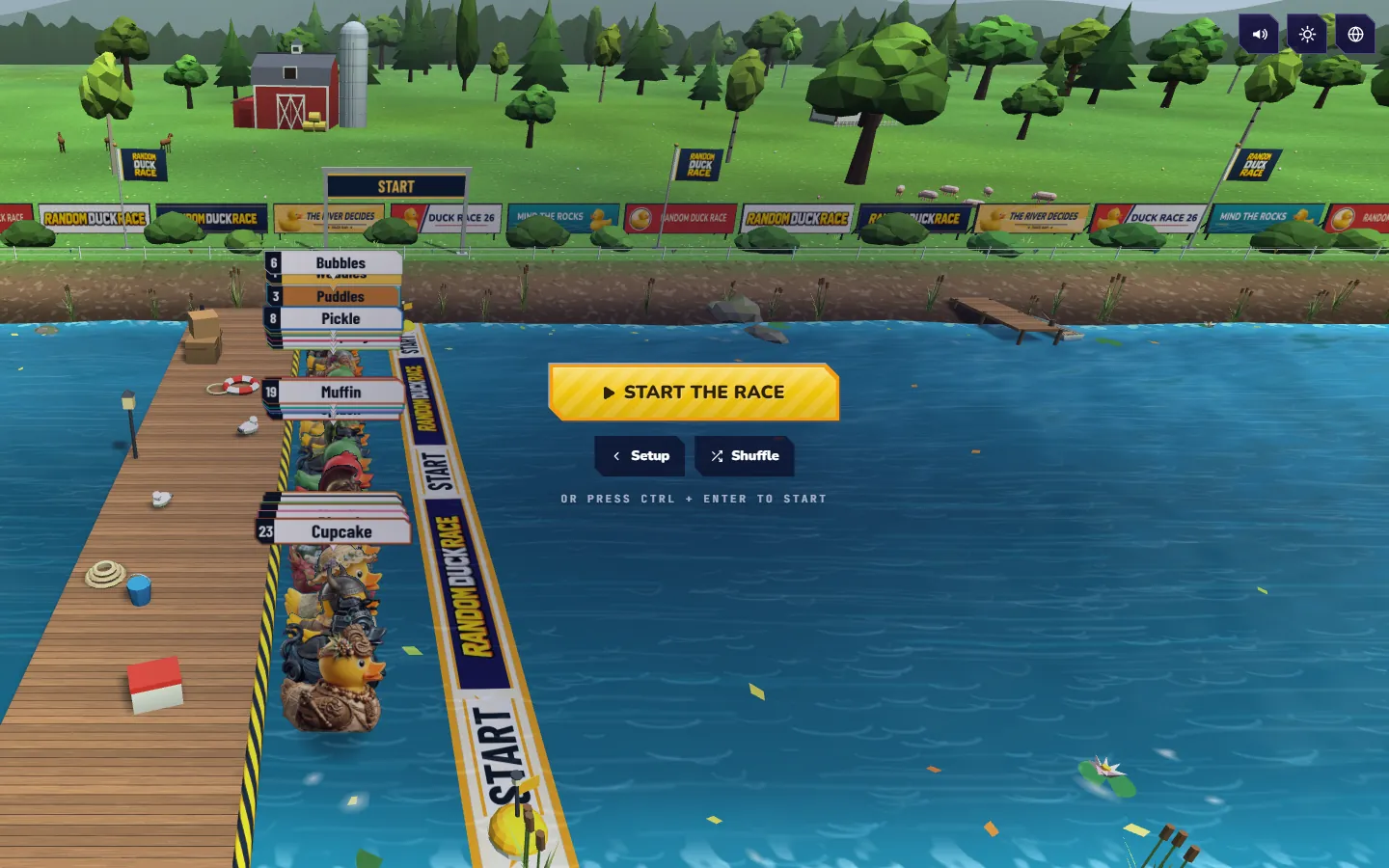
Press Set the race. The ducks line up on the start line with their lanes drawn at random — press Shuffle for a new draw if you like — then hit Start. Prefer the keyboard? Ctrl + Enter starts from the setup screen.
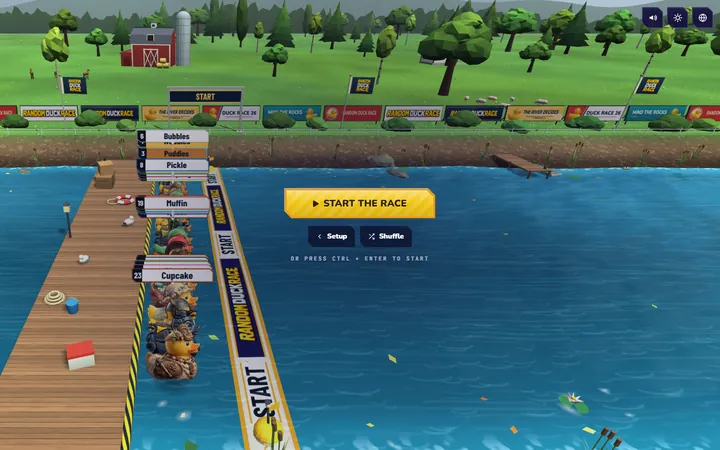
The start line Every duck in its lane by the pontoon, the lanes drawn at random, ready for the off. -
Watch it unfold
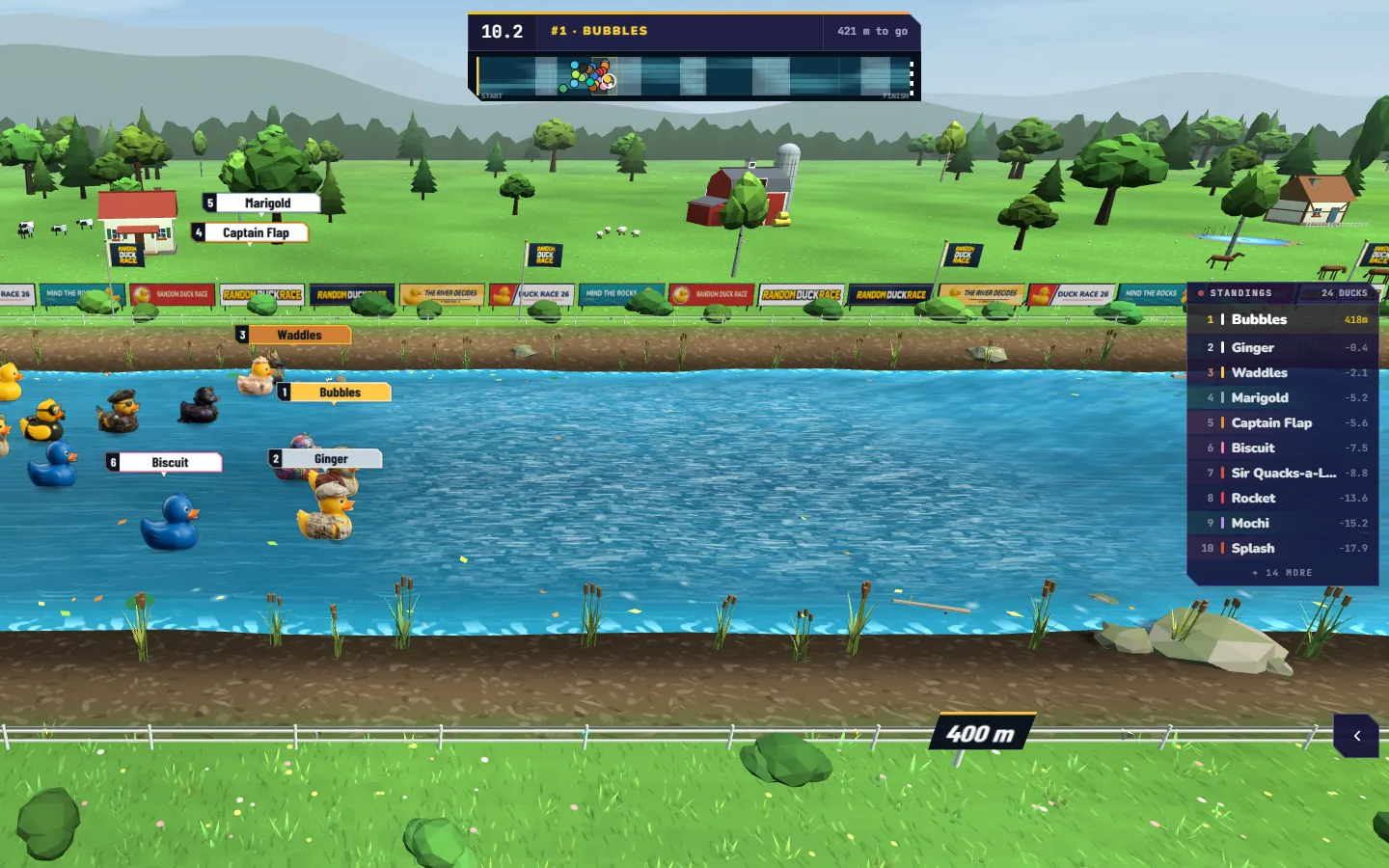
The camera follows the leaders down the river while the ladder on the side keeps the live order of the whole field. Commentary pops up for lead changes, comebacks and photo finishes.
- Space pauses and resumes the race.
- F speeds the playback up, Z zooms out to see more of the field, M mutes.
- S ends the race on the spot with a random result, when time runs out.
All of these can be changed under Settings › Shortcuts.
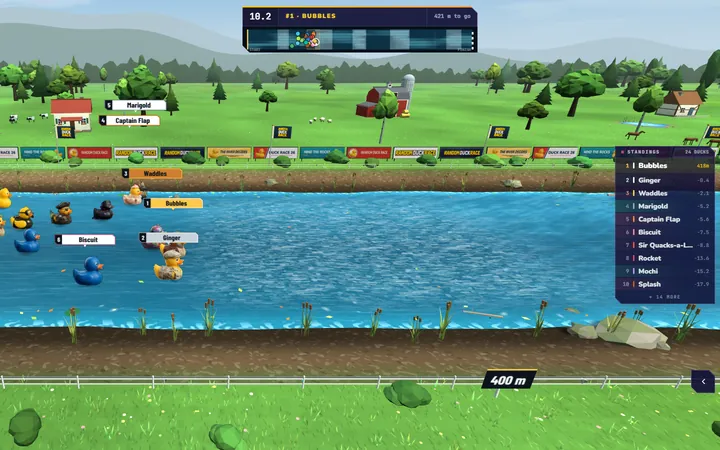
Mid-race The camera follows the leaders down the river, with the live standings beside it (Settings › Standings). 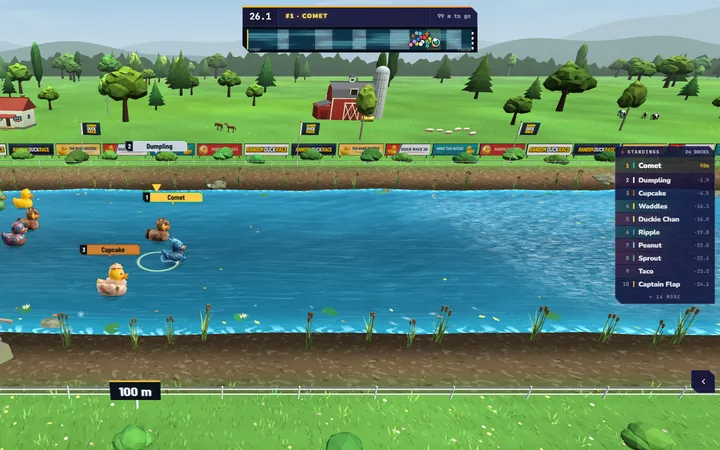
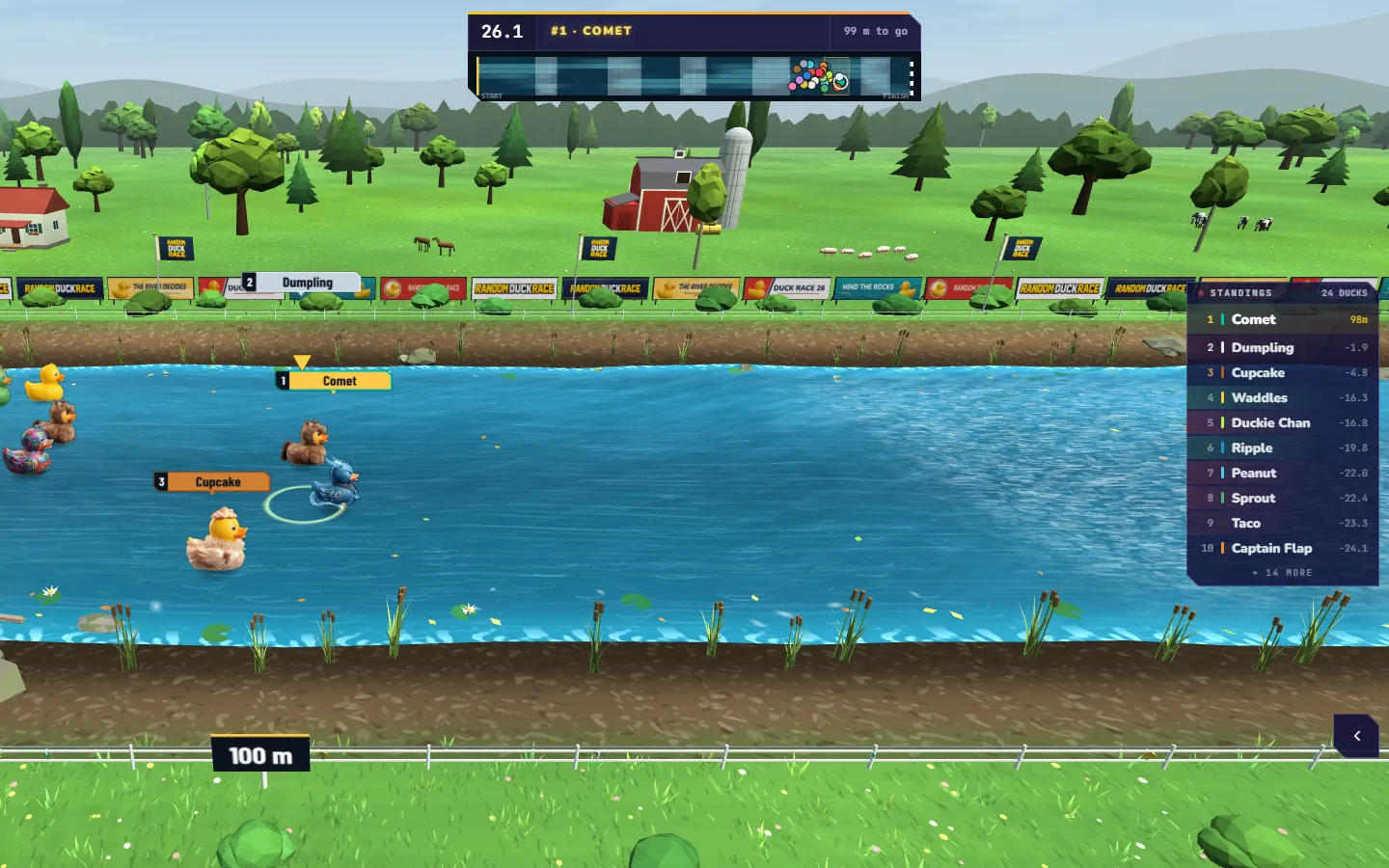
The final stretch In the last metres a gold ring and arrow mark the duck in front, so everyone sees who leads. -
Celebrate the winner
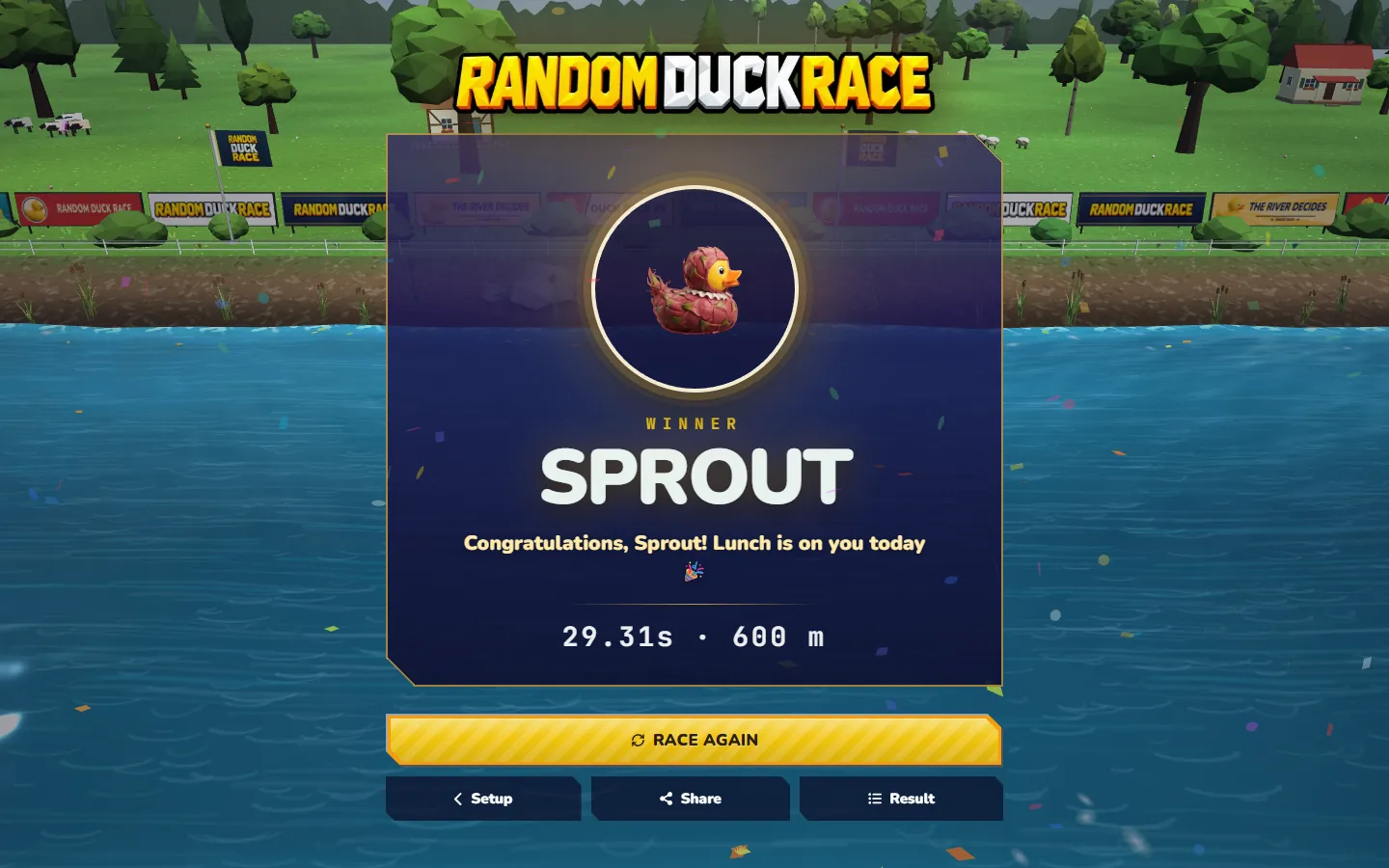
The champion gets the podium, the fireworks and a portrait. Then:
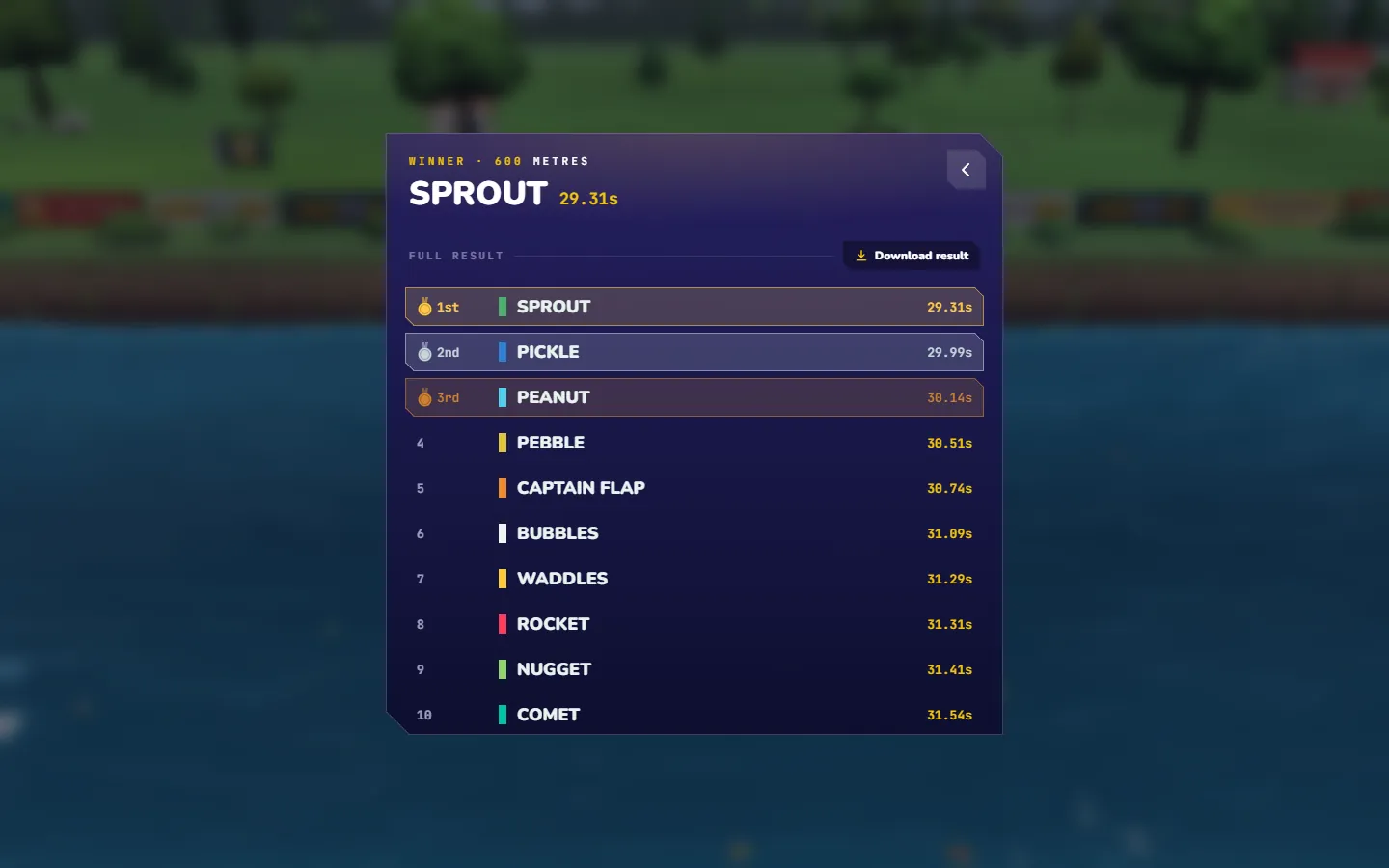
- Open the full result with every duck’s place and time.
- Download a result image, or the full result as an Excel sheet.
- Share the result or the race setup with a link, a QR code, or straight to WhatsApp, Telegram, Teams, Facebook, X or email.
- Race again with the same field — and remove the winner first if each name should only win once.
Every race is also kept in your race history (your last 100), in this browser only.
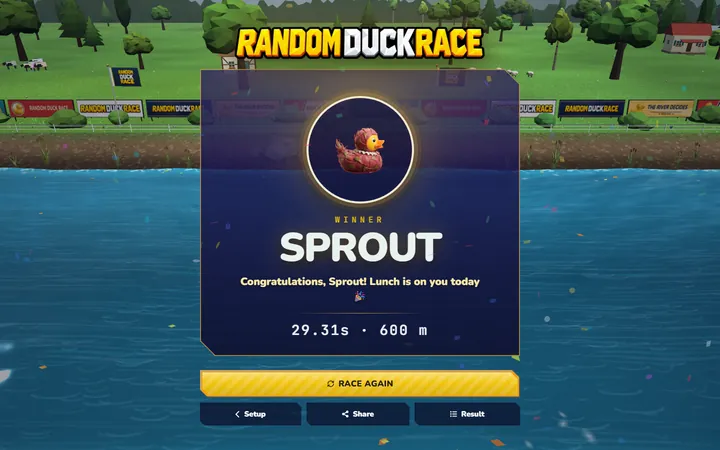
The winner The champion’s screen, with fireworks, confetti and your own message under the winner’s name. 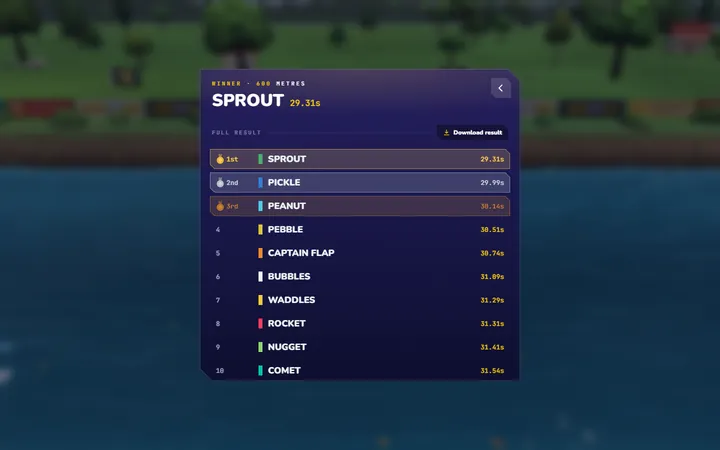
The full result Every duck’s place, time and gap to the winner — ready to download as an image or a spreadsheet.
Play together: everyone races on their own phone
With a room, the race runs on the big screen and every player joins from their own phone or computer — no app, no account. Room › Create a room asks what it is for:
- Race with friends — up to 50 players, each following the race on their own screen, with reactions and live standings. For friends, a class, a team.
- Big screen & livestreams — up to 1,000 players who all watch your screen or your stream: a party, a company event, a stream. They join from your Twitch chat (they type
!join; see the Twitch guide), or with a link or QR code that works for any platform — YouTube Live, TikTok Live, Facebook, Kick or a room full of people. Their phones then show only what's theirs: that they're in, their place during the race, and their result.
The steps below are a room for friends; a big-screen room works the same way, with less on the phones.
1. The host opens a room
On the big screen, choose Room › Create a room. Set the most players, whether you let each player in yourself, and even a start time — the race then starts by itself.
2. Players scan and join
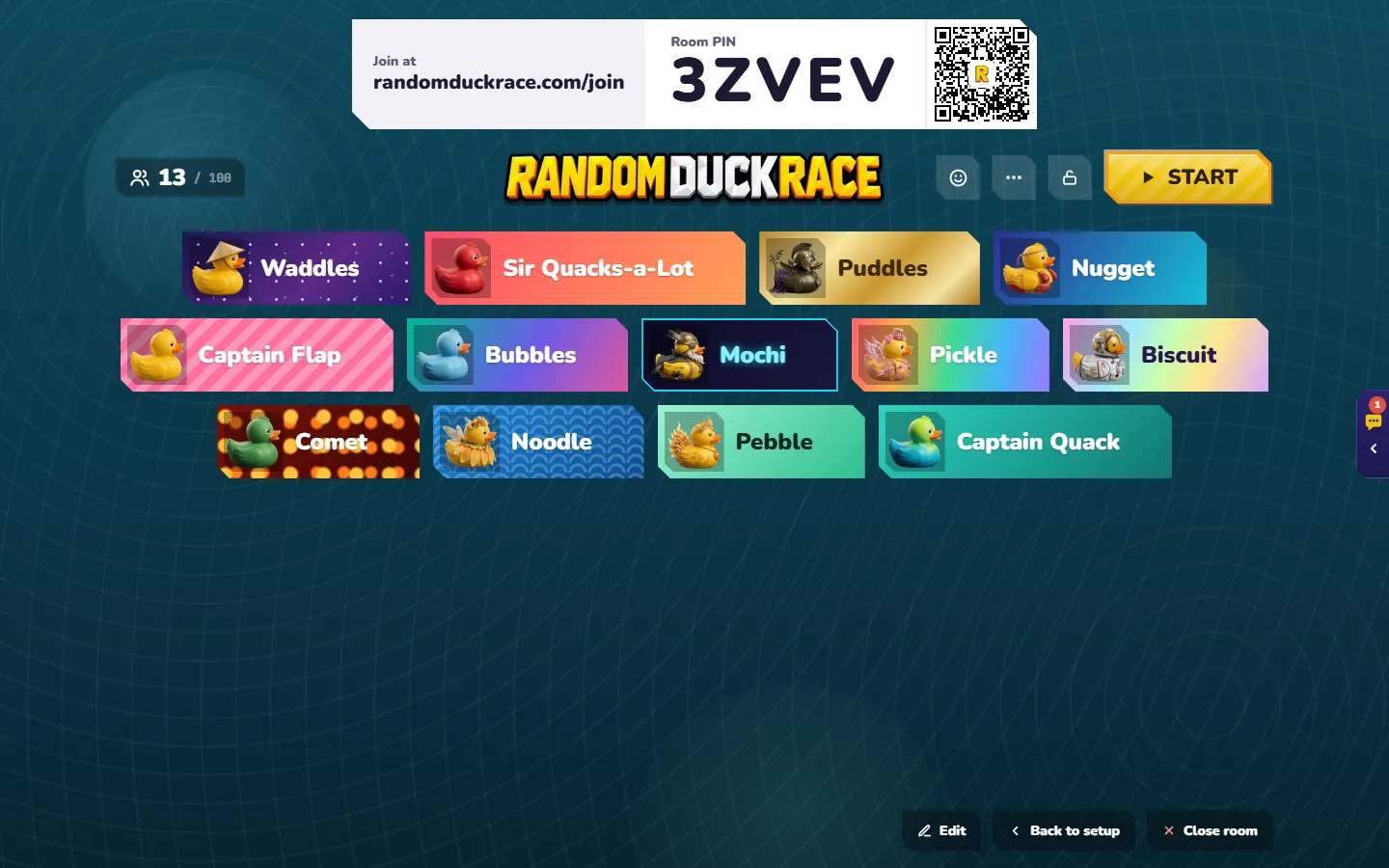
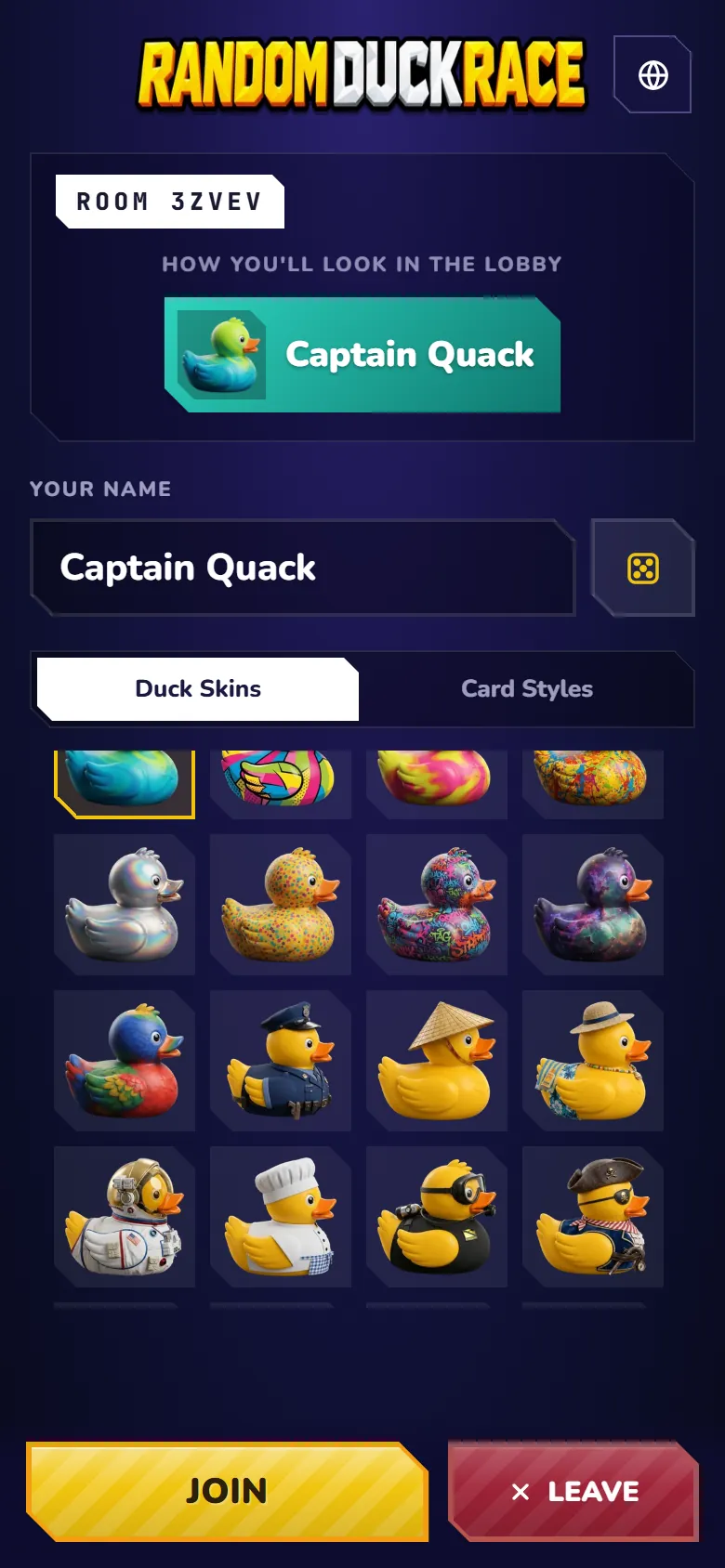
Players scan the QR code, or go to randomduckrace.com/join and type the 5-character PIN. Each one picks a name, a duck and a card style for the lobby.
3. The lobby comes alive
Everyone shows up on the big screen. Players send emoji reactions that float across the screen (a room has no chat). The host can add a duck for someone without a phone, change the lobby theme or the room size — or tap the crown on a player’s card to hand them the room: their screen becomes the big screen.
4. Race and follow along
When the host starts, phones count down with the big screen, then show live standings and each player’s own place — or Watch the race itself, played back from the big screen (it loads while the lobby waits, so it is ready the moment the race starts). Everyone gets their result at the finish. Racing with your own duck? My duck on the race's bar follows it on the big screen.
Tips for the best duck race
- On a projector, choose a 600 m course and the Top 10 name tags — the build-up is half the fun.
- For a quick decision, choose a 300 m course: the answer comes in well under a minute.
- Very big fields (hundreds of ducks) run best on a computer; an older phone draws them less sharply by itself to keep the race smooth.
- Save your class list once, then load it in one tap for every lesson.
- Embed the race on your own website or LMS: the embed builder writes the code for you.
- Looking for names? Try our 100 cute and funny duck names.
Still curious? The FAQ answers the most common questions, and the classroom use cases are full of ideas. More pictures of the game are in the screenshots.
Keep reading
All posts Classroom
10 Creative Ways to Use Random Duck Race in Your Classroom
From picking a student and forming random groups to “Duck of the Day” and vocabulary races: ten tried-and-tested ideas for the classroom.
 Giveaways & events
Giveaway Picker: Draw a Random Winner Live
Instagram, TikTok, YouTube or Twitch: paste the names, race them live and give your community a draw worth watching.
 Name ideas
100 Cute & Funny Duck Names for Your Duck Race
Speedy, Quacky, Waddles, Flappy and 96 more — short, adorable names for classroom races, streams and game nights, ready to send to the starting line.